











How to Find your Stolen or Lost Smartphone

Have you lost your Smartphone? Are you searching for “How to find stolen mobile phone” in Google? Then you have landed at the right place. In previous days it is very difficult to find stolen smartphone. But now, in this new technical era it is easy to find your stolen cell phone. In this article, we are providing the ways to find your lost Smartphone (Android phone, iphone, Windows). With the help of these tips you can easily find or locate your stolen smartphone.
How to Find your Stolen or Lost Smartphone
iPhone
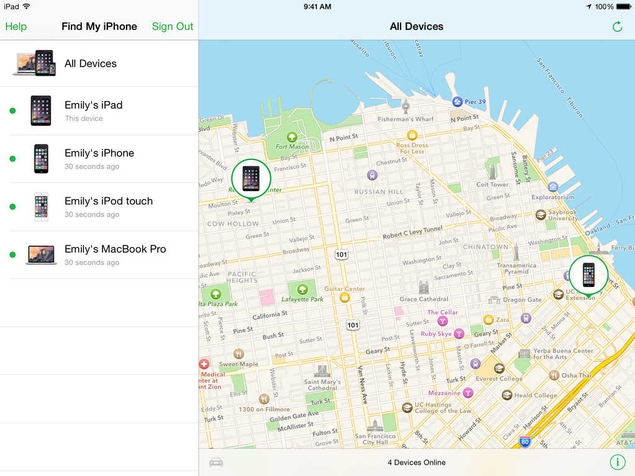
Apple’s Find My iPhone service can track a phone’s physical location, and more. But it needs to be switched on – hopefully, if you’ve already your lost smartphone, then Find My iPhone was already on, but if you still have the phone with you, the first thing you want to do is turn this setting on.
- On your iOS device, go to Settings > iCloud > Find My iPhone.
- Make sure that the switch next to Find My iPhone is in the green on position.
You can now track your iOS device using an app on another iPhone or iPad, or using the browser. This is how the app works:
- Download the Find My iPhone app on your iOS device.
- Sign in with your iCloud account – the same one you’re using on the iPhone you’re trying to find.
- Now all the devices that are signed in to that iCloud account will be listed in the app.
- Tap any device to see its location.
In case you’ve misplaced the iPhone, then this should help you track it down, but you will see some more options at the bottom of the screen which you can use.
You will see three buttons at the bottom – Play Sound, Lost Mode and Erase iPhone – or iPad, as the case may be.
- Play Sound will play a loud alarm tone that will help you find your iOS device if it is nearby.
- Tapping Lost Mode opens up a page where you need to set a 4-digit passcode to lock your iOS device if it doesn’t have one already. If it already has a passcode, then you can use this button to lock the phone remotely, so other people can’t use it.
- In Lost Mode, you can also enter a phone number and a message that will be displayed on the lockscreen. You can enter messages like, “Hello, please return my iPhone. Contact me now”. You can also track your device this way.
- The Erase iPhone (or Erase iPad) button deletes all the data on the the iOS device, in case you’re worried about sensitive data falling into the wrong hands. However, you won’t be able to use Find my iPhone to physically track the phone after you erase it.
The features mentioned above are accessible via the Web too. Just head to iCloud and sign in with your Apple ID. The steps and buttons are the same otherwise.
Android
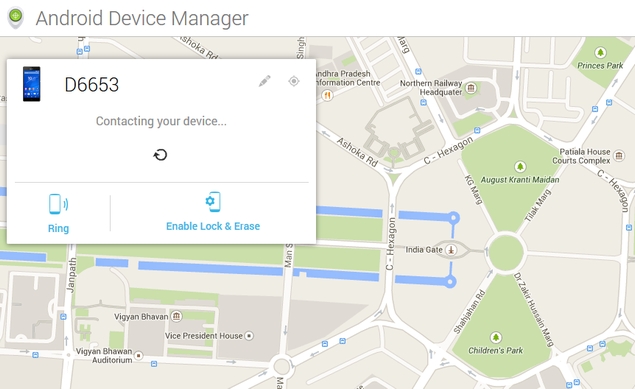
The Android Device Manager works similarly to Find My iPhone. You can either use the device manager on the Internet, or download the app, to use from another Android device. The tracking is on by default. This is how you use it:
- Head to Android Device Manager.
- Sign in with your Google Account – the same one as the missing phone.
- Now you’ll see your Android device on the top left.
- If it isn’t the one you’re looking for, click the tiny down arrow next to the device name and select the correct device from the list.
This shows you the location of your lost smartphone, but again, there are three options you can chose from: Ring, Lock and Erase.
- Clicking Ring will make your device ring – useful for finding the phone if it is nearby – just missing in your home or office, for example.
- Click Lock if you’ve lost your phone.
- In the pop-up, enter a new password, and click on Confirm. You can also enter a recovery message and your phone number. These will be displayed on the lost device.
- Click Lock when you’re done to lock the device remotely.
- To locate the device, click the GPS icon on the top-right of the box, next to the pencil icon. You need to have location access enabled on your Android device for this feature to work. The device can now only be unlocked using the password you just set.
- The Erase button performs a factory reset on your device, which is important if you believe you can’t recover the phone. But once you do this, then much like Find My iPhone, the Android Device Manager will also not work.
If you have an Android device, you can also track your lost smartphone using the Android Device Manager app – after you log in with the same Google account as the missing device, the steps are the same.
Windows Phone
Windows Phone users also need to make sure that the Find My Phone setting is enabled on their devices, so the first thing to do is turn that on now, when you still have your phone.
- On your phone go to Settings > Find My Phone.
- Check Use push notifications… and Save my phone’s location periodically and before the battery runs out to make it easier to find.
- Go to Settings > Location and flip the switch to On.
Now, you can use the browser on your computer or another device to find your phone if you misplace it or lose it in any other way. This is what you need to do:
- Head to the Windows Phone website and sign in with your Microsoft account.
- Your Windows Phone device will show up at the top.
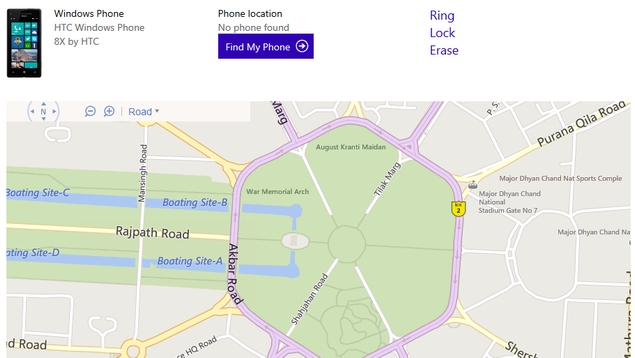
- Click Find My Phone to locate your device.
- If you haven’t checked Use push notifications… mentioned in step 2, Microsoft will ask you to set up SMS based alerts. If you are in India, you need to scroll down all the way and select “Bharat” written in Devnagri script.
- If you are setting up SMS alerts, enter your phone number, click the check box below and click Done.
- Clicking Find My Phone (above the map) will locate the device on the map.
After you’ve found your phone on the map, you can carry out certain functions, as with the other platforms.
- Ring makes the phone ring, so you can locate it if it is nearby.
- Lock asks you for a new password, and locks the phone, so other people can’t use it.
- Erase deletes all data on the phone, but you can’t track it after this.
Were you able to find your lost smartphone? Do you think these phone features are useful? Let us know via the comments.


Leave a Response