Are power banks safe or not?

Content in this Article
  1. Are power banks safe or not?

Now a days most of the people are using power banks rather than original chargers to charge their smartphones, Tablets and Gadgets. Do you ever get a doubt that using power banks to charge gadgets is safe or not? Do you know how far it is safe to use these power banks? In order to clarify all your doubts, you have to read the following article.

Are power banks safe or not?

We get the original phone charger along with our new Mobile phone. It doesn’t matter where the power comes from, charging is always the same.

Modern Lithium Ion and Lithium Poly cells do benefit from being “topped off”. There is no lifetime penalty for charging before they’re depleted. In fact, letting a battery get too low will reduce its lifetime. You count on the phone’s software to prevent the most extreme form of this, but it’s far better to charge before the battery dies.

A typical Lithium battery will have between 300 and 500 full charge cycles. So if you let your phone die every day, you could need a new battery in less than a year. Most people don’t do that, and so it’s more common to get two or so years out of that cell.

Hybrid cars don’t have dramatically different batteries, but they only run through a fraction if the battery’s capacity. If you had a charger that would only charge to about 80% of the battery’s capacity, and the phone cut off at 20% or so, the battery might last a decade (assuming that power cycling is the only aging mechanism… some Lithium chemistries don’t last more than 3-5 years even without any use). Of course, you’d hate the battery life, and the phone makers would eliminate one reason people upgrade to new phones, so this is unlikely to happen.

Are power banks safe or not?

Also See:  10 Best Useful Google Maps Tips and Tricks

If your power bank voltage is lesser than 5.1V never use it with your device as it will end up drawing power from your device and not charging your device or will end up drawing very little power.

When charging with your power bank either make sure that the USB cable that you use to charge your device is the one that it came with and not a cheap and not good cable. The cable should be as short as possible and as fat as possible(as it offers less resistance) otherwise the cable won’t be offering any charge current due to its high resistance.

Phones actually have circuit inside of them that charges the lithium battery properly so it doesn’t really matter what if it is a wall charger or an USB port or a battery bank. As long as the input voltage of the phone stays within limit it will be just fine.

Also See:  Tips to Charge Smartphone Battery very fast


Mistakes you do while Choosing Power Banks

Now a days so many gadget users are suffering from battery backup issue. Are you belongs to the same category? So don’t worry friends, we can overcome this problem with the help of Power Banks. We can carry these power banks along with us and can recharge our gadgets when ever we want. Generally people commit mistakes while choosing power bank for their necessities. Choosing the wrong power banks can damage your valuable gadgets and Electronic devices.

We had made a list of mistakes that generally people will do while choosing power banks. So, please read the following list and avoid these mistakes while choosing power bank.

Mistakes you do while Choosing Power Banks

1. Power Banks with Large Capacity and Cheap Prices

Today many markets that offer Power Bank with a large capacity and the price is cheap, and many people are interested in this product. You have to be careful, because there are some cheap Power Bank products are manufactured using a refurbished battery which makes it cheaper. Better to choose products with a well-known brand, which is important to give your gadget’s security is guaranteed.

2. Choosing Power Bank With unnecessary Capacity

One reason for choosing Power Bank is easy to carry anywhere. Very appropriate if you choose Power Bank with a large capacity with a large size. So selects power bank according to your need. Select the appropriate power bank with daily needs, if you only need an additional 1500 mAh of power a day, choose a power bank with 3000mAh capacity.

3. Ignore battery cell power bank quality

Some people choose their power bank because brand that already in market or cheap price and does not care about battery cell that used. Battery cell will determine how long your power bank will survive.

Choosing Power Banks

Also See: whatsApp Tricks and Tips for iphone, Android, Blackberry

4. Using unoriginal connector

This is an important thing that often ignore by power bank users. Many power banks that have many connectors but not all connectors have good quality, the worst thing that can be happen is short circuit. Using gadget original connector is more safe because the output can be more stable.

5. Choosing Power Bank Regardless Features

User gadgets often assume that the power of banks is only a tool to deliver power to the gadgets, so they don’t think of other features.
Though Power Bank offers high-security features, differ on cheap products.

Select Power Bank with these features:

  • Short circuit protection (short circuit protection). Select Power Bank that features can cut power when a short circuit occurs
  • Protection from over charge (Over charging protection). Select the Power Bank can be automatically cut off the electricity, if the battery has a full charge.
  • Protection from high temperature (Temperature protection). Features that can detect high temperature when charging the battery.

6. Not paying attention to Output Power Bank

Some Power Bank products have no corresponding output required by your device, and this causes the battery charging process becomes longer. Select power bank that have output power according to you’re device.

7. Buying Power Bank that doesn’t have the UL certification

UL certification ensures that Power Bank already has a good quality and have a corresponding output, thus ensuring your gadgets safe.

Hope you understand what are the mistakes you are doing while choosing Power Banks. It is better to avoid all these mistakes to keep your gadgets safe. If you like the article ” Mistakes you do while Choosing Power Banks “, you can share with your friends and feel free to ask doubts.

Also See:

whatsApp Tricks and Tips for iphone, Android, Blackberry

WhatsApp has brought tremendous changes in communication world. We can differentiates the communication system before and after of WhatsApp evolution. For most of us, WhatsApp has become the default Messenger app. WhatsApp has over a billion downloads on Google Play alone, the only other messenger to boast that is Facebook Messenger. The app has made itself indispensable by adding a browser version and voice calling to its platform. If you are surfing for best WhatsApp tricks and tips, then you have landed at right place.

For those who have to deal with the app on a daily basis, we’ve lined up Top 10 best interesting WhatsApp tricks and tips that will improve your user-experience. These tricks will works in Iphone, Android, Blackberry, windows smartphones.

WhatsApp Tricks and Tips

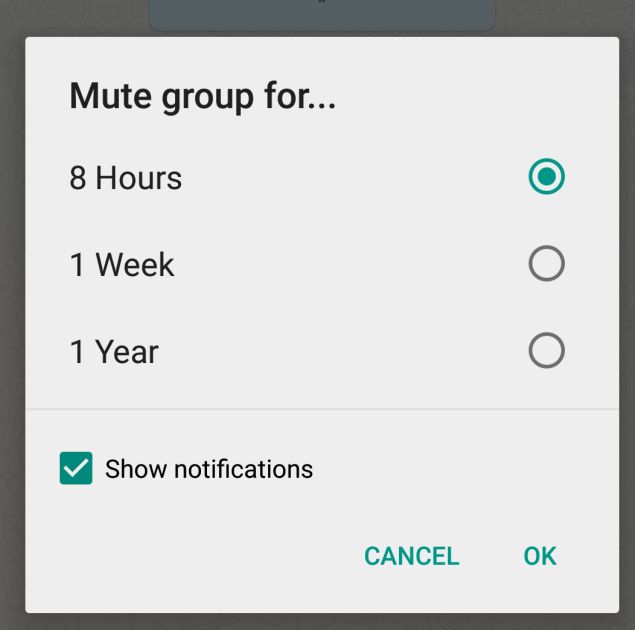
1. Mute group chats and notifications
whatsapp Tricks and Tips

Group chat notifications can get noisy, they’re best turned off when you have to focus on a task at hand.

On Android
On a group chat, tap the Menu button, and hit Mute. Then, choose the time-frame for which you would like the group to be muted. You can also disable notifications for the specified period. This feature is now available on the web browser too.

On iPhone
Open Group Chat, tap the group subject to reveal the Group Info screen, and tapMute. Now, select how long you’d like notifications to be muted.

2. Send a broadcast message
whatsapp Tricks and Tips

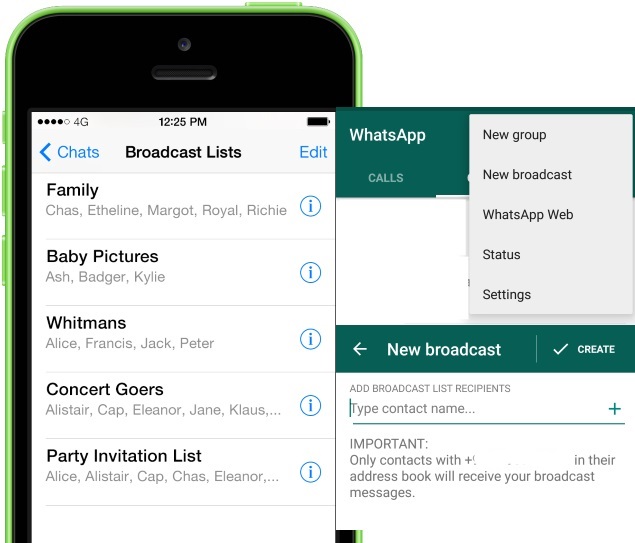
The equivalent of Bccing your message, it’s cheaper than sending a group SMS. The replies from your broadcast will be visible only to you.

On Android
Tap on Menu > New Broadcast, and select all the contacts you would like to round up for the message.

On iPhone
Tap the Broadcast Lists button at the top of the Chats screen, tap New List at the bottom of the screen, filter from your contact list and then tap Create.

3. Find out who has read your message in a WhatsApp group
whatsapp Tricks and Tips

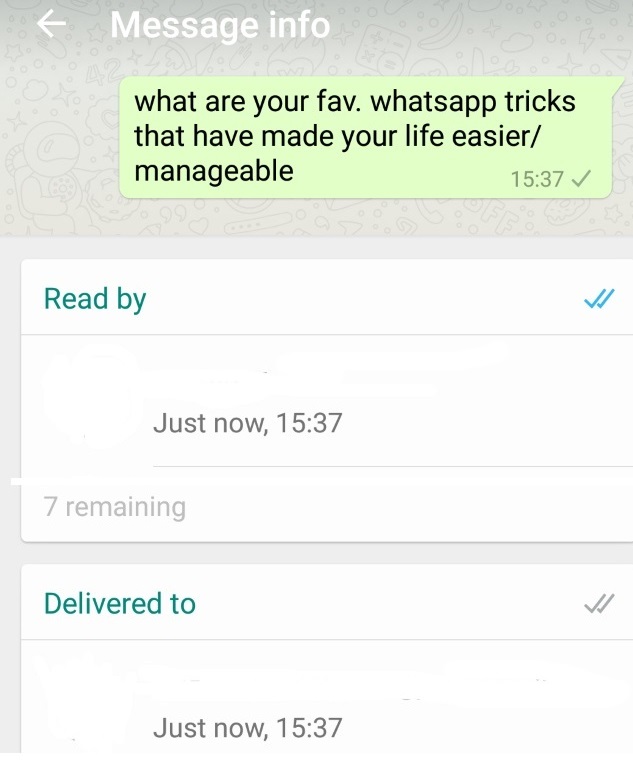
Read receipts, marked by two blue ticks indicate that the recipient has read your message. Find out who has read your message on group chats.

On Android
Do a long press on a message sent by you. This reveals an ‘i’ with a circle around it. Tapping on it will show you who the message was delivered to, and read by.

On iPhone
See the Message Info screen by opening a chat with a contact or a group, then swiping your message from the left to right to see delivery and read notifications.

Also See: 10 Best Useful Google Maps Tips and Tricks

4. Migrate to a new number
whatsapp Tricks and Tips

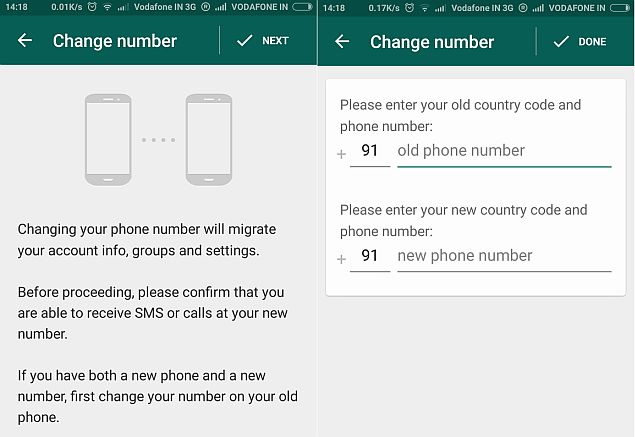
If you’ve changed your SIM card, there’s a way to import your account information, groups and settings. Keep in mind that your old number will be deleted. Make sure that your new SIM is active and able to receive SMSes and calls.

On Android
Tap on Menu > Settings > Account > Change Number and enter the old phone number in the first box, followed by the new number in the second one.

On iPhone
Go to Settings > Account > Change Number, Enter your old phone number in the first box, and your new phone number in the second box.

5. Disable Last Seen and Read Receipts aka blue ticks
whatsapp Tricks and Tips

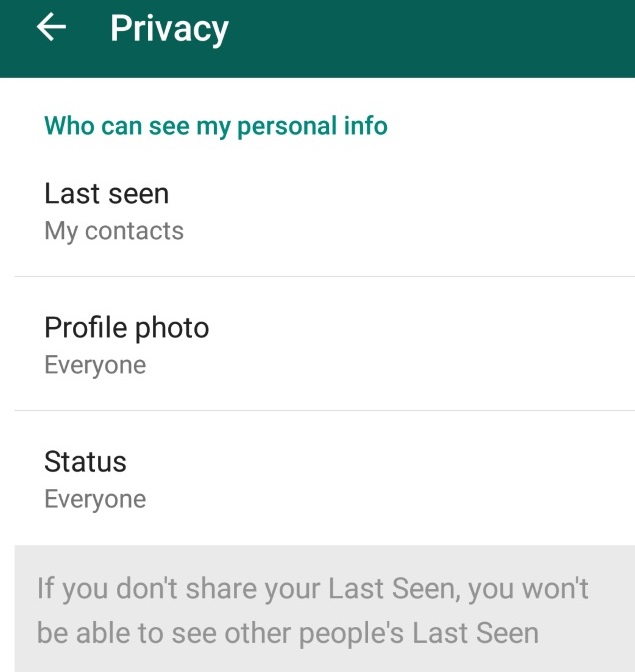
By default, WhatsApp lets everyone know the last time you used the app. Your last seen timestamp, profile photo and WhatsApp status message can be toggled between ‘Everyone’, ‘My contacts’, and ‘Nobody’ in Settings > Account > Privacy on both iPhone and Android.

Read Receipts, notified by those Blue Ticks can seem too obsessive and creepy. You can disable them too, but that also means you won’t be able to see read receipts from other people.

6. Backup And Restore WhatsApp Chats

WhatsApp makes automatic backups of your chats, but you can also make a manual backup. On iOS, it’s Settings > Chat Settings > Chat Backup, then tapBack Up Now.

On Android, just go into Settings > Chat settings and tap Backup conversations to create a backup. This won’t backup your media, so you’ll need to use a file manager to copy the media folders in /sdcard/WhatsApp/Media.

whatsapp Tricks and Tips

There’s no way to restore chats directly from WhatsApp, so if you want to restore a backup you’re going to have to uninstall and reinstall WhatsApp. When you start WhatsApp after the reinstall, you should be prompted to restore your most recent backup. Just follow the procedure and your chats should all be back.

Also See: How to make Whatsapp Faster?

7. Create Shortcuts For Important Contacts

Want to speed up your WhatsApp communication? How about creating a shortcut to your favorite Whatsapp contact or group straight from your homescreen?

On Android, this is as simple as long pressing on the group or contact you want to create a shortcut for. When the menu pops up, just tap on Add conversation shortcut. This will create a shortcut to the contact or group you have chosen right on your homescreen.

whatsapp Tricks and Tips

This behaviour isn’t available on WhatsApp for iOS, but you can use a third-party app such as 1TapWA to have similar functionality on your iPhone. Since it’s an app, 1TapWA also has some extra features such as an image editor and an action scheduler.

8. Stop WhatsApp Images from Appearing In Gallery Or Camera Roll

Having WhatsApp images in your Gallery or Camera Roll can be very annoying; maybe the images are somewhat private, or you just don’t like having these images clutter up your Gallery or Camera Roll. You can fix this on both iOS and Android.

On iOS, it’s pretty simple; just go to Settings > Privacy > Photos and then turn the WhatsApp switch off.

whatsapp Tricks and Tips

On Android, you have to create a .nomedia file in WhatsApp’s images or video directories. To do this, you need a file explorer such as ES File Explorer. Navigate to the images or video folders. Tap the New button in the lower left, pick File and create a file named .nomedia. This will stop the Gallery from scanning the folder.

9. Lock Your WhatsApp

Everyone, at some point or another, has probably had to deal with friends or family taking a sneak peek at their WhatsApp messages. Thankfully, if you’re using WhatsApp on Android or BlackBerry, there are apps that can help secure your WhatsApp from prying eyes.

If you’re using Android, there’s WhatsApp Lock, while BlackBerry users will want to check out Lock for WhatsApp.

whatsapp Tricks and Tips

Basically, both of these apps work similarly: when you use them, WhatsApp will be protected by a PIN (in the case of WhatsLock) or a password (in the case of Lock for WhatsApp). Either way, once you have things set up, the people around you shouldn’t be able to take a sneak peek at your WhatsApp any longer.

Also See: How to increase your phone’s Battery life?

10. Explore hotspots around you
whatsapp Tricks and Tips

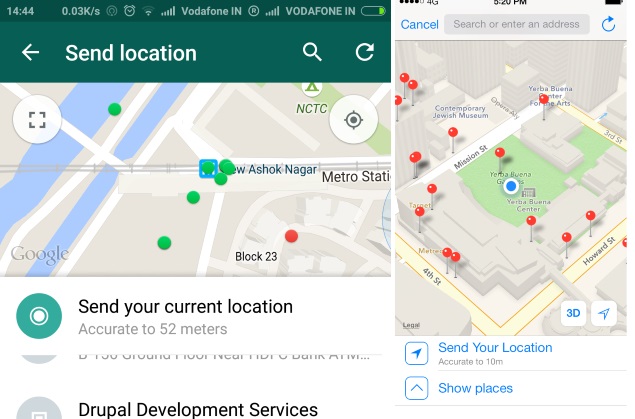
Tap on the Send location icon in the attachment pane to explore interesting hotspots around you. The map is a mash-up of FourSquare check-ins of places around you. You’ll find everything from local tech start ups to restaurants, marked as blue dots.

I Hope that You Enjoy this Post ” whatsapp Tricks and Tips for iphone,Android,Blackberry “, Please share It with Your Friends, if you Really like. If you know any other WhatsApp tips and tricks kindly share with us through your comments.

Also See: Tips to Charge Smartphone Battery very fast
10 Best Useful Google Maps Tips and Tricks

Google maps are the best way to find any location in the world. We can go to any place in the world with out facing any difficulty if we have Google maps app in our Smartphone. Most of the people may don’t know that there some Google maps navigation tips and tricks to find your destination easily. Here we had list out 10 best useful Google maps tips and tricks of 2015. These Google maps search tips will work in both Android and Iphone. We can also use these Google maps tips in offline.

10 Best Useful Google Maps Tips and Tricks

1. How to save your home and work addresses


One of the first things you should do with Google Maps is save your home and work addresses. To do this, open up Google Maps, tap the menu button — represented by the three vertical lines in the top-left corner — and tap Your places. You’ll see entries for Home and Work. Put your addresses in. You can now ask Google Maps to navigate to Home or Work instead of having to enter the address. You can also enter searches like “restaurants near work,” and get a list of viable suggestions.

2. How to share your location

Just tap and hold on your location (marked by a blue dot) to drop a pin. Tap the address or Dropped pin section at the bottom of the screen to expand it, then tap Share. You’ll see a pop-up list of apps that you can share your location through. If someone is having trouble finding your location, then a photo view of the front of the actual building can help.

3. How to find things nearby

You may not know exactly what you’re looking for. Maybe you want some gas, you’re looking for a bite to eat, or you need to mail a package. Tap the blank search bar in Google Maps and you’ll see a list of recent searches, but you’ll also see some icons for points of interest nearby. If you tap the three horizontal dots then you can expand that list. There are restaurants, hospitals, ATMs, gas stations, and many other categories.

Choose whatever it is you’re looking for, and you’ll get a list of options nearby with distances, and you can tap on one for directions. You’ll also see review scores, when there are any, and you can often call businesses or visit the website directly from the information panel. If you slide the information panel down then you’ll see that they’re all marked on the map.

Also Read: 7 Smartphone Photography Tips and Tricks

4. How to get directions quickly

Most of us are familiar with the Google Maps Navigation feature that offers voice-guided, turn-by-turn directions, but did you know that there’s a nifty shortcut to start it? You can search for a place or touch it on the map, then touch and hold the blue transportation button at the bottom right (it shows a car, bike, or person), and Google Maps will choose the best route and launch straight into Navigation mode.

5. How to see Street View on mobile

If you want to see a photo of your location, then you need Street View. Touch and hold on the map to drop a pin on your chosen location, then tap at the bottom where it says Dropped pin (or the address) to bring the information up. You should see an image that says Street View on it. Tap that, and you’ll launch into Street View at your chosen location. You can share that Street View by tapping the menu in the top-right corner and tapping Share.

Also Read: Tips to Charge Smartphone Battery very fast

6. How to view maps offline

A lot of users complain that one of the major weaknesses of Google Maps is the fact that you need to be online to use it. Actually, you can download and view maps offline with a little planning. If you’re going to New York, for example, you would open up the app, search for “New York,” tap the bar at the bottom where it says New York, then choose Menu (the three vertical dots) located in the top-right corner, and tap Save offline map.

The whole of New York is going to be too big, so you’ll be prompted to select an area. You can name your map when you save it. Your saved maps will be listed in the Google Maps menu, accessed by tapping the three horizontal lines at the top left when you open the app. Take a look under Your places, and scroll to the bottom to find your offline maps. They’re set to expire in 30 days, so you’ll need to update if you want to keep it beyond that point.

Offline maps are pretty limited, unfortunately. You can’t get turn-by-turn directions, or search maps while you’re offline.

7. How to save favorite locations

You’ll see recent searches come up when you tap on the search bar, but you can also save locations quite easily, and it can be a real time-saver in the future when you look for a place again. In order to do it, simply tap on the place you want to save on the map, expand the information by tapping on the address at the bottom, and then tap the star that says Saveunderneath. When a location has been saved, that star will go from blue to gold. Go into the menu and you’ll find Saved places listed under Your places.

8. How to see where you’ve been

Google Maps

Google Maps keeps a record of your travels and you can review it via your browser. Go to this Google link and, provided you’re signed into your Google account, you’ll see a map of where you’ve visited in the last day. You can use the calendar located in the top-left corner to select specific dates, or date ranges to see weeks and months.

Beneath the calendar you’ll also see options to Delete history from this time period and Delete all history. You can also turn this tracking off by opening the Google Settings app, and tapping Location > Google Location History. Toggle it off completely, or choose specific devices that you want it turned off for. Bear in mind that, if you don’t have GPS on and High accuracymode set under Location in your Settings all the time, then you may see some approximate locations that are way off where you really were.

9. How to use voice commands in Navigation

There are various voice commands that you can use while you’re in Navigation mode in Google Maps. You just have to tap the microphone icon at the top right and then speak your command. You can turn off the voice by saying “Mute,” or “Be quiet.” You can also “Show traffic,” ask it to “Show alternate routes,” or say “Next turn” to find out what your next turn is. Many options have multiple triggers and there are lots of possibilities, but you can browse Google’s full list of voice commands for a detailed summary of the various commands.

Also Read:  Tips to improve Laptop Battery life

10. How to get directions for multiple locations

Google Maps

You really have to plan ahead if you want to map out a route that goes through multiple locations. Unfortunately, there’s no easy way to do this in the mobile apps. Go to Google Maps in your browser instead, make sure you’re signed in, and search for the directions you want. There’s a small plus icon at the top left, under your chosen destinations which allows you to add a destination. You can plot a whole itinerary this way.

If you’re in the United States and signed into your Google account on Chrome, then you can just type send directions into google.com and set your route with multiple locations before having it sent to your iPhone or Android phone. To enable this in iOS you’ll need to open up the Google Maps app, tap Settings > Notifications, and make sure that Notifications are enabled and Sent from desktop maps is checked.

If you feel that, the article “ 10 Best Useful Google Maps Tips and Tricks ” is helpful to you, you can share it with your friends.

How to make Fb Messenger Faster?

Is your Fb messenger running slow in you rphone? Are you surfing for “How to make Fb Messenger Faster on Android phone / on iphone?”. Then you have landed at right place.

Earlier SMS was the main medium for communication among users. But the Smartphones has updated it with many Instant Messaging Apps. Among the number of apps, Fb Messenger is the most used and most popular messaging App globally with more no of Active Users.

But, What if this instant messaging app does not stand on its own terms? What if it stops working or it takes time to load, send and receive messages? This may happen because of excessive data traffic which is very common now-a-days.

So, to avoid this lag and enjoy uninterrupted texting with your loved ones, Here we are giving some Tips which will make your Fb Messenger Faster without any lags.

How to make Fb Messenger Faster?

1. Deleting Messages and Data :

As we know, Fb messenger is not restricted with Text messages only, we can send and receive audio, videos and photos. One of the basic reason Fb messenger gets slow is due to its messages and data only. Number of videos and photos are shared online daily which gets stored in the Fb messenger memory. When number of messages and media gets stored, it takes a lot of time to load, process and open your Fb messenger. So, the very basic thing you can do to make Fb Messenger Faster is delete unwanted messages and clear the media such as videos and songs. This will free up some memory of Fb messenger and it will load Fb Messenger faster than before.

How to make Fb Messenger Faster

2. Clearing Cache and Optimizing RAM :

With so much texting happening over the Fb Messenger daily, lots of data gets stored. This builds up the cache memory which stores the temporary files. This uses the RAM and makes the processing slow. This cache should be cleared on a regular basis so as to avoid extra junk getting stored. To clear the cache, you can navigate to the Application Manager and clear the cache and data stored. RAM optimizing is also important when a number of apps are running on your smartphone. By optimizing RAM you can free up some RAM and apps will work smoothly. This tricks will resolve any hang problem and makes your Fb Messenger faster.

3. Moving or Deleting Backup Files :

The media like photos, videos and Songs received from Fb messenger friends, is not the only reason behind your slow Fb messenger. You will find the biggest files in Fb messenger backup database. They almost store all the things in Fb messenger in an encrypted form. Fb messenger updates your backup files every day, which eventually adds to the large database. This backup will acquire large space if you don’t manage the backup files frequently. This backup files should be moved to another storage location or you can transfer or E-mail them to your computer. The old backup files can be deleted too. After performing the above method you can certainly make your Fb messenger a bit faster.

4. Archive Messages :

Sometimes we want to keep all the messages as memories and sometimes messages are important as well but due to slow processing or low memory we might need to delete messages. But instead of doing that we can Archive our messages in Fb messenger which will store our messages as well as acquire less memory. So this method is very useful when you want to keep your messages without making your Fb messenger slow.

So, these were the 4 tips which will help you in making your Fb messenger faster. Using Fb messenger slow or fast is in your hands only, unwanted data should be deleted to enjoy instant messaging.

ALSO SEE

How to make Whatsapp Faster?

Is your Whatsapp messenger running slow in you rphone? Are you surfing for “How to make Whatsapp Faster on Android phone / on iphone?”. Then you have landed at right place.

Earlier SMS was the main medium for communication among users. But the Smartphones has updated it with many Instant Messaging Apps. Among the number of apps, WhatsApp is the most used and most popular messaging App globally with more than 800 Million Active Users.

But, What if this instant messaging app does not stand on its own terms? What if it stops working or it takes time to load, send and receive messages? This may happen because of excessive data traffic which is very common now-a-days.

So, to avoid this lag and enjoy uninterrupted texting with your loved ones, Here we are giving some Tips which will make your WhatsApp work faster without any lags.

How to make Whatsapp Faster?

1. Deleting Messages and Data :

As we know, WhatsApp is not restricted with Text messages only, we can send and receive audio, videos and photos. One of the basic reason WhatsApp gets slow is due to its messages and data only. Number of videos and photos are shared online daily which gets stored in the WhatsApp memory. When number of messages and media gets stored, it takes a lot of time to load, process and open your WhatsApp. So, the very basic thing you can do to make whatsapp faster is delete unwanted messages and clear the media such as videos and songs. This will free up some memory of WhatsApp and it will load WhatsApp faster than before.

How to make Whatsapp Faster

2. Clearing Cache and Optimizing RAM :

With so much texting happening over the WhatsApp daily, lots of data gets stored. This builds up the cache memory which stores the temporary files. This uses the RAM and makes the processing slow. This cache should be cleared on a regular basis so as to avoid extra junk getting stored. To clear the cache, you can navigate to the Application Manager and clear the cache and data stored. RAM optimizing is also important when a number of apps are running on your smartphone. By optimizing RAM you can free up some RAM and apps will work smoothly. This tricks will resolve any hang problem and makes your WhatsApp faster.

3. Moving or Deleting Backup Files :

The media like photos, videos and Songs received from WhatsApp friends, is not the only reason behind your slow WhatsApp. You will find the biggest files in WhatsApp backup database. They almost store all the things in WhatsApp in an encrypted form. WhatsApp updates your backup files every day, which eventually adds to the large database. This backup will acquire large space if you don’t manage the backup files frequently. This backup files should be moved to another storage location or you can transfer or E-mail them to your computer. The old backup files can be deleted too. After performing the above method you can certainly make your WhatsApp a bit faster.

4. Archive Messages :

Sometimes we want to keep all the messages as memories and sometimes messages are important as well but due to slow processing or low memory we might need to delete messages. But instead of doing that we can Archive our messages in WhatsApp which will store our messages as well as acquire less memory. So this method is very useful when you want to keep your messages without making your WhatsApp slow.

So, these were the 4 tips which will help you in making your WhatsApp faster. Using WhatsApp slow or fast is in your hands only, unwanted data should be deleted to enjoy instant messaging.

ALSO SEE

7 Smartphone Photography Tips and Tricks

Are you surfing for best Smartphone Photography Tips? Then you have landed at the right place. The smartphone has changed the notion of traditional photography, mostly because it is easier to carry around a camera phone that fits in your pocket rather than bulkier DSLR cameras.
Most of us underestimate the capabilities of our smartphone cameras. For taking pictures with smartphone, you need not to be a professional photographer. There are some best tips for smartphone photography with which we can capture photos with amazing quality.

Here we are providing best 7 Photography Tips and Tricks for Smartphone users. By following these photography tips for smartphone you can improve your smartphone photography very well.

7 Smartphone Photography Tips and Tricks

1. MULTIPLE YOU PANORAMA

Smartphone Photography Tips and Tricks

Most software allows you to take a panorama shot, the trick here is to have a model run couter-panorama wise and post at various stages of the panorama. This will crate the appearance of them being present at multiple places at once. If you do end up making one, tag it #panodash. Here is a short clip that explains it:

Smartphone Photography Tips and Tricks

2. THE DRIVE BY PANORAMA

Smartphone Photography Tips and Tricks

Instead of moving the camera around to create a 360 degrees panorama, you can do a parallel panorama by keeping the camera at a steady position while driving. This creates a different panorama altogether.

3. THE BINOCULAR ZOOM LENS

Smartphone Photography Tips and Tricks

While you can probably get a zoom lens off of amazon for less than Rs.1000, you may already have such a lens at home if you own a pair of field binoculars. Or even a pair of kids binoculars. Jsut attach them to the lens and you got instant lomo-like zoom lens.

4. DROPLET MACRO

Smartphone Photography Tips and Tricks

If you don’t have a DVD available for sacrificing a macro lens, you can simply apply a small drop of water on the smarphone lens to get it to shoot macro. The curved drop will act as a macro filter. Be careful not to get water anywhere else in your phone.

5. USE A CAR SHADE AS A REFLECTOR

Smartphone Photography Tips and Tricks

This is a hack we talked about a lot when DIYP was younger, but we never discussed applying it to smartphonography. The idea is to get some cool reflections on the cheap by using a car sun reflective sun shade. The idea is that a little bit of reflected light can either open up the shadows or provide a hard light look, depending on how oyu use it.

6. USE HEADPHONES AS SHUTTER RELEASE

Smartphone Photography Tips and Tricks

If you need to get some distance from your phone for a self portrait, you can actually use your headphone as a shutter release. And if you are looking for a small tripod you can try this credit card tripod design here, or any of those nifty, albeit more complex, designs.

7. UNDERWATER CUP CASE

Smartphone Photography Tips and Tricks

This one is a bit risky for my taste, but you can snap an shallow under water photo by placing a phone in a cup and using the cup for water protection.

You can also watch:

ALSO SEE