
Your iPhone, iPad, or iPod Touch probably houses some pretty expensive data, photos, contacts, notes, documents, and more. What would it cost to replace all that data if your iOS device were lost, stolen, severely damaged, or just went kaput? Backing up your iPhone data is important to you to keep your data safe. If you backup iPhone, iPad, or iPod touch, you’ll have a copy of your information to use if your device is ever replaced, lost, or damaged. In order to help you out, here we are providing the ways to “ How to bakup iphone to itunes and icloud “.
Most of the people backup iphone to Macbook. Apple gives you two very simple and free ways for duplicating and storing a copy of your information. One option is to use iCloud and the other is to use iTunes. iCloud is cloud storage that which gives you the ability to sync between multiple iOS devices and your Mac. iTunes is usually a hassle when it comes to transfering music and pictures. However, backing up your iOS devices on iTunes is very simple and takes just a few clicks.
Choose a backup method
Before you get started, you have to know the difference between making backup iphone with iCloud and iTunes. Decide which method is best for you and follow the steps below. In case you ever need an alternative backup, you can make one in iCloud and another in iTunes.
How to Backup iphone to itunes and icloud
Backup iphone to iTunes
1. Open iTunes and connect your device to your computer.
2. Save content that you downloaded from the iTunes Store or App Store by clicking File > Devices > Transfer Purchases. If you’re using Windows and you don’t see a File menu, press the Alt key.
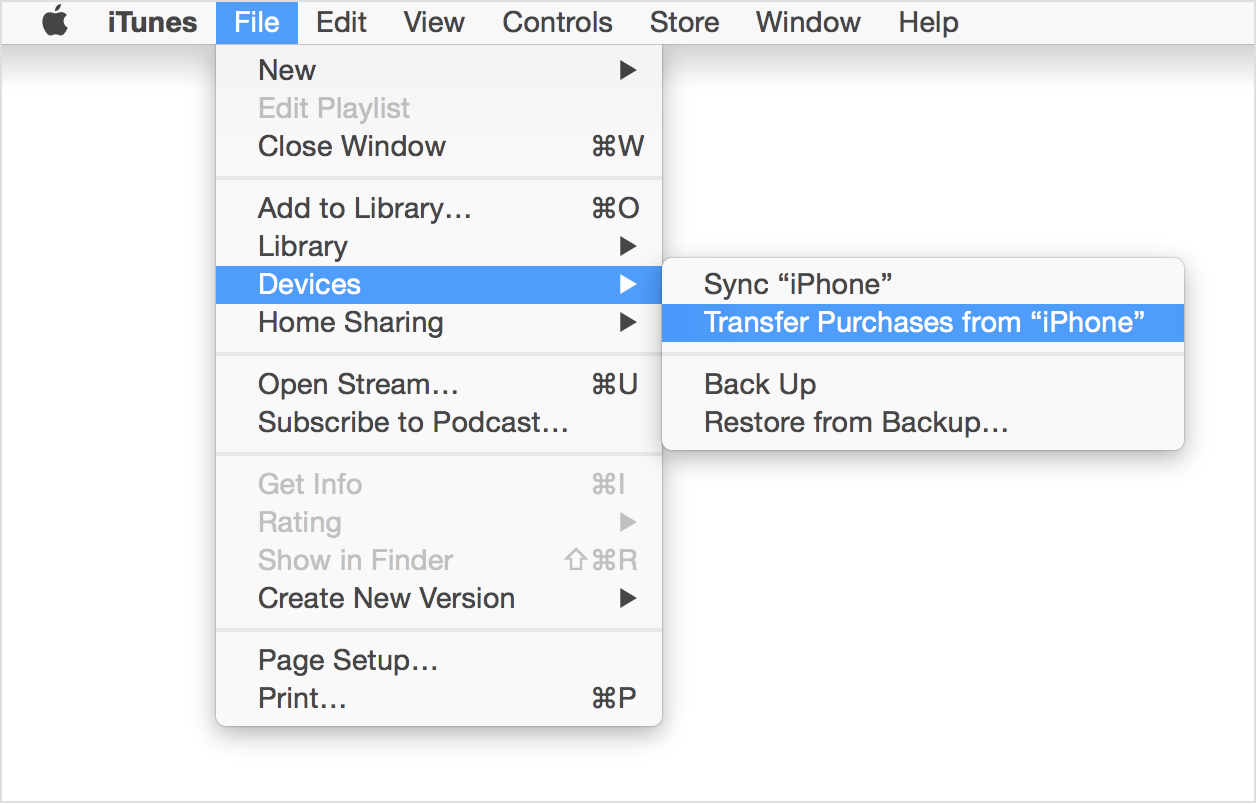
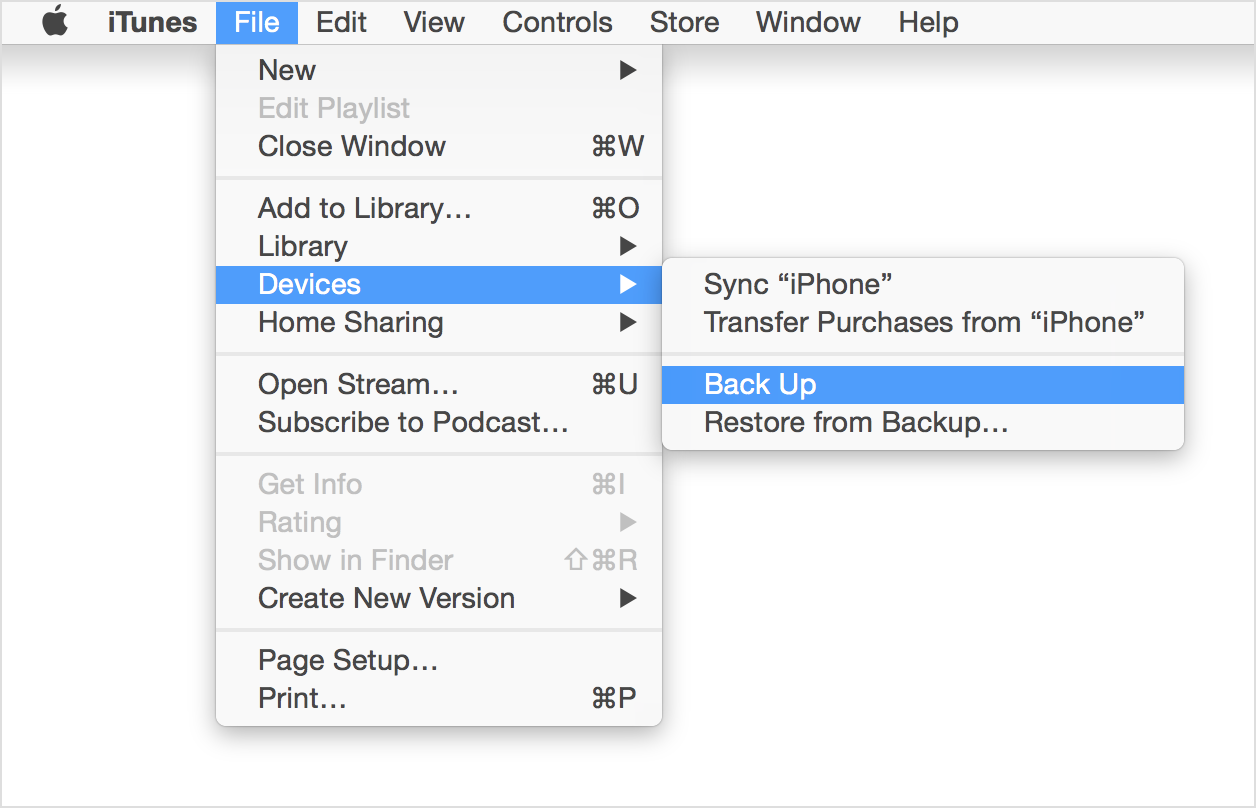
3. Wait for iTunes to finish transferring your purchases. Then, click File > Devices > Back up. If you’re using Windows and you don’t see a File menu, press the Alt key.
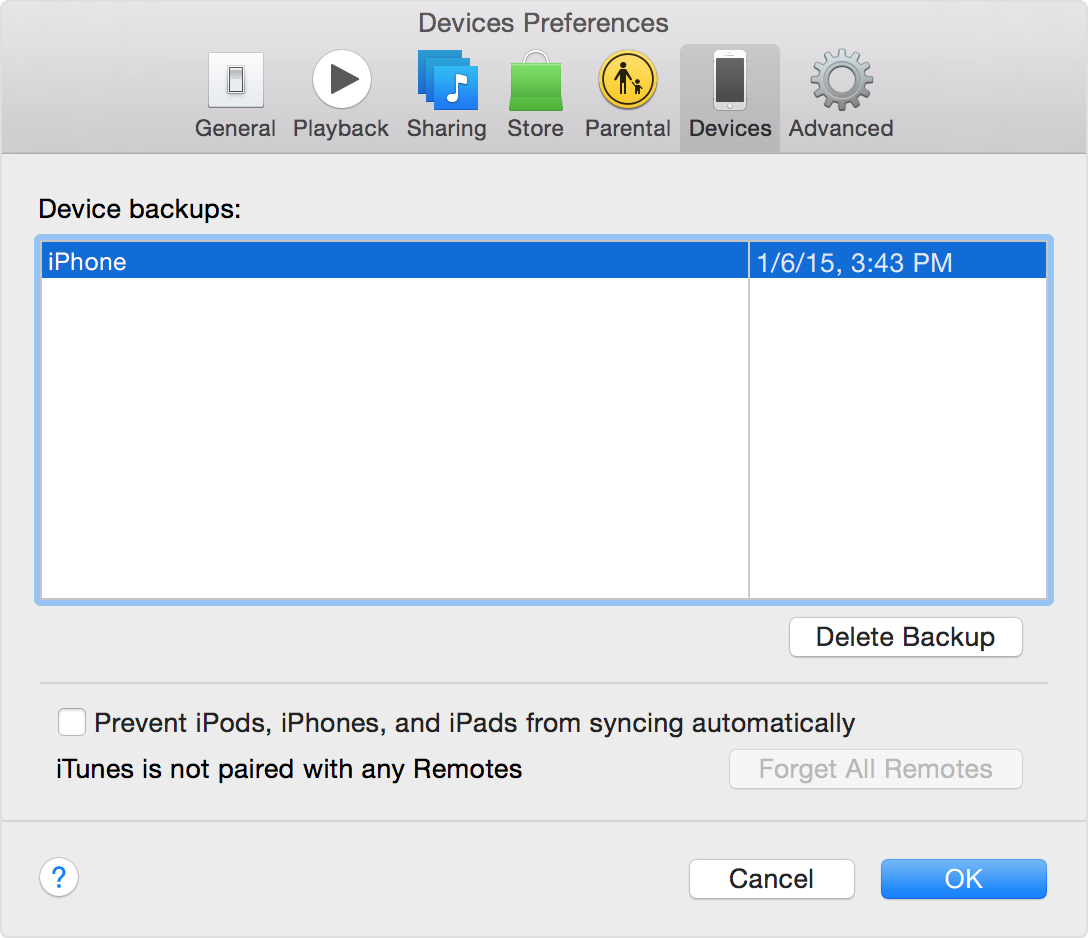
4. After the process ends, you can see if your backup finished successfully by clicking iTunes Preferences > Devices. You should see the name of your device with the date and time that iTunes created the backup.
Also Read : 5 Best iPhone Backup Apps for iOS Users
Backup iphone to iCloud
1. Connect your device to a Wi-Fi network.
2. In iOS 8 or later, tap Settings > iCloud > Backup.
In iOS 7 or earlier, tap Settings > iCloud > Storage & Backup.
3. Make sure that iCloud Backup is turned on.
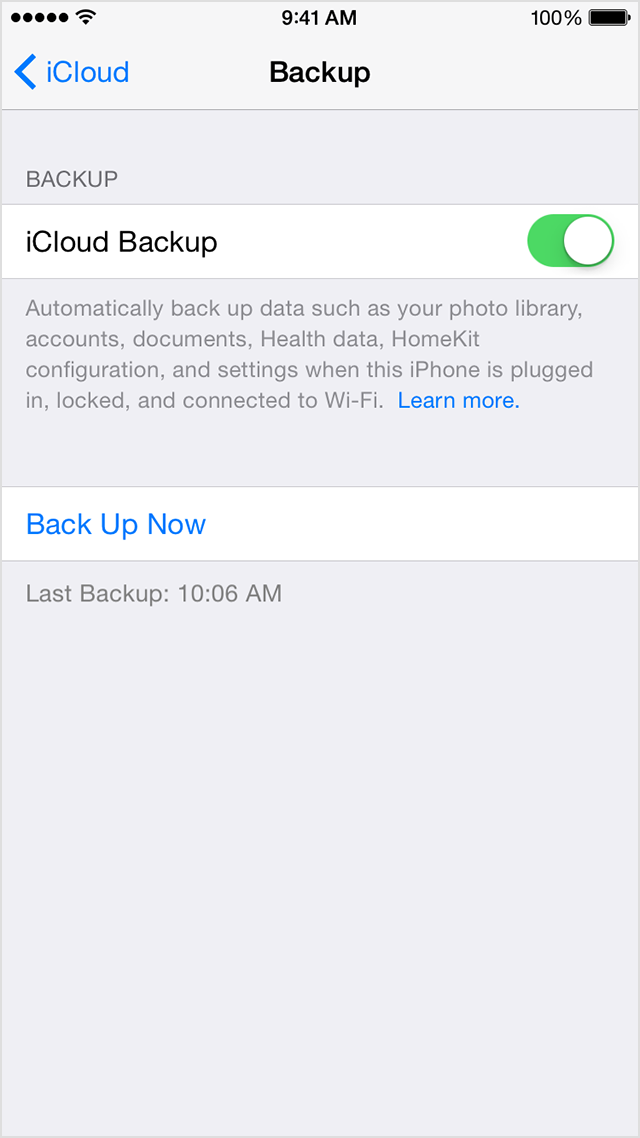
4. Tap Back Up Now. Stay connected to your Wi-Fi network until the process completes.
5. Make sure the backup finished by tapping Settings > iCloud > Storage > Manage Storage, and then select your device. The backup you just made should appear in the details with the time and backup size.
We are sure this article will help you to backup iphone contacts to PC or Gmail. Not only contacts, you can also backup iphone Photos, Notes, Documents…etc to icloud or to macbook.
Also Read : 10 Best iphone Keyboard Apps