
- WhatsApp Tricks and Tips
- 1. Mute group chats and notifications
- 2. Send a broadcast message
- 3. Find out who has read your message in a WhatsApp group
- 4. Migrate to a new number
- 5. Disable Last Seen and Read Receipts aka blue ticks
- 6. Backup And Restore WhatsApp Chats
- 7. Create Shortcuts For Important Contacts
- 8. Stop WhatsApp Images from Appearing In Gallery Or Camera Roll
- 9. Lock Your WhatsApp
- 10. Explore hotspots around you
WhatsApp has brought tremendous changes in communication world. We can differentiates the communication system before and after of WhatsApp evolution. For most of us, WhatsApp has become the default Messenger app. WhatsApp has over a billion downloads on Google Play alone, the only other messenger to boast that is Facebook Messenger. The app has made itself indispensable by adding a browser version and voice calling to its platform. If you are surfing for best WhatsApp tricks and tips, then you have landed at right place.
For those who have to deal with the app on a daily basis, we’ve lined up Top 10 best interesting WhatsApp tricks and tips that will improve your user-experience. These tricks will works in Iphone, Android, Blackberry, windows smartphones.
WhatsApp Tricks and Tips
1. Mute group chats and notifications
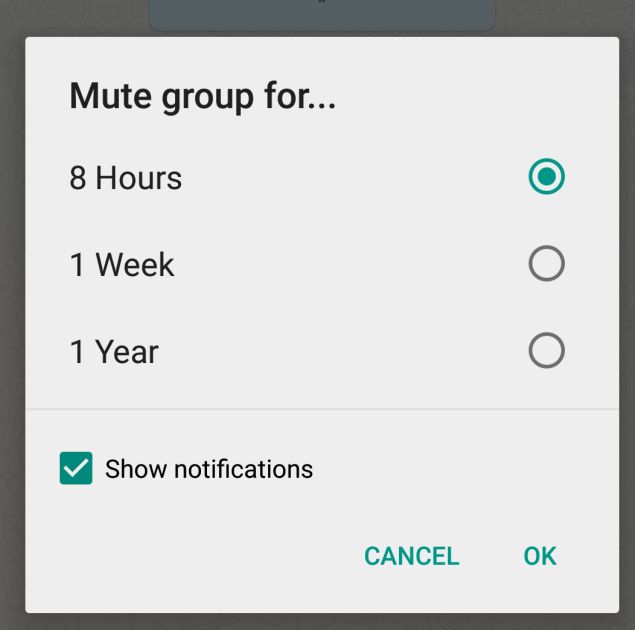
Group chat notifications can get noisy, they’re best turned off when you have to focus on a task at hand.
On Android
On a group chat, tap the Menu button, and hit Mute. Then, choose the time-frame for which you would like the group to be muted. You can also disable notifications for the specified period. This feature is now available on the web browser too.
On iPhone
Open Group Chat, tap the group subject to reveal the Group Info screen, and tapMute. Now, select how long you’d like notifications to be muted.
2. Send a broadcast message
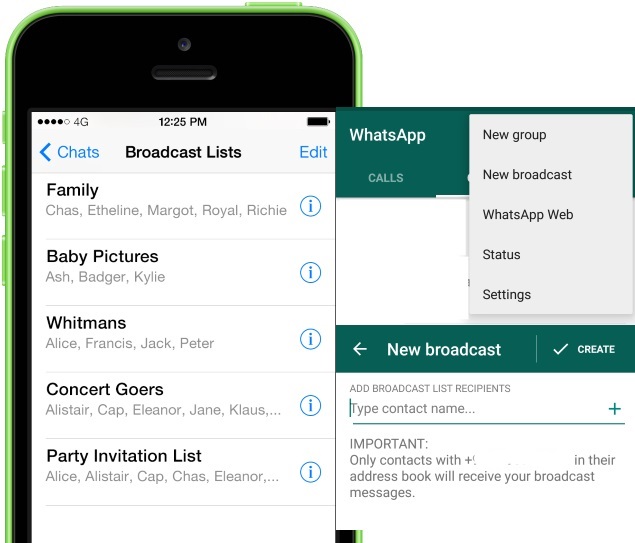
The equivalent of Bccing your message, it’s cheaper than sending a group SMS. The replies from your broadcast will be visible only to you.
On Android
Tap on Menu > New Broadcast, and select all the contacts you would like to round up for the message.
On iPhone
Tap the Broadcast Lists button at the top of the Chats screen, tap New List at the bottom of the screen, filter from your contact list and then tap Create.
3. Find out who has read your message in a WhatsApp group
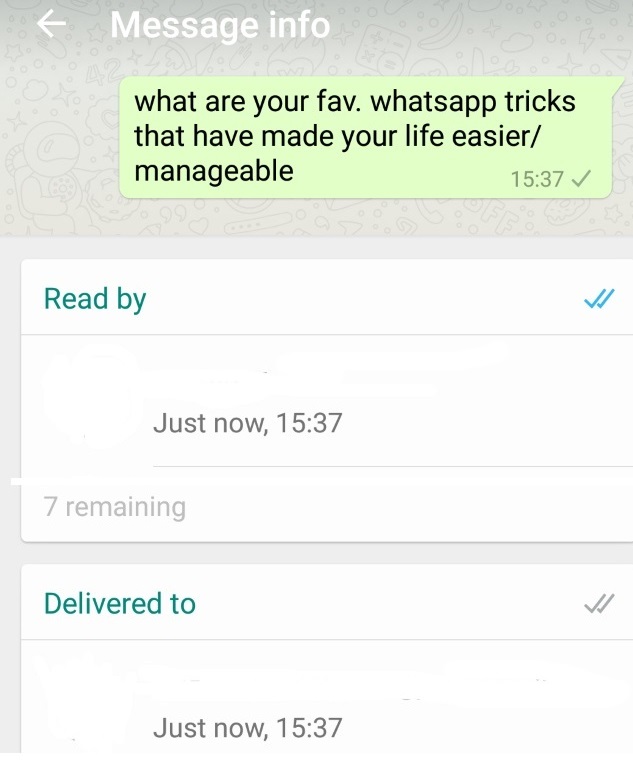
Read receipts, marked by two blue ticks indicate that the recipient has read your message. Find out who has read your message on group chats.
On Android
Do a long press on a message sent by you. This reveals an ‘i’ with a circle around it. Tapping on it will show you who the message was delivered to, and read by.
On iPhone
See the Message Info screen by opening a chat with a contact or a group, then swiping your message from the left to right to see delivery and read notifications.
Also See: 10 Best Useful Google Maps Tips and Tricks
4. Migrate to a new number
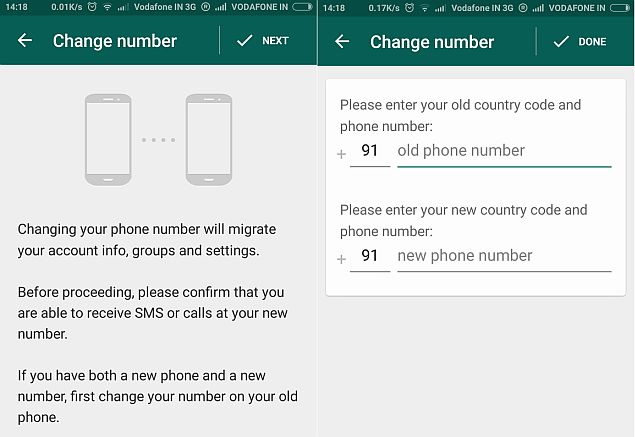
If you’ve changed your SIM card, there’s a way to import your account information, groups and settings. Keep in mind that your old number will be deleted. Make sure that your new SIM is active and able to receive SMSes and calls.
On Android
Tap on Menu > Settings > Account > Change Number and enter the old phone number in the first box, followed by the new number in the second one.
On iPhone
Go to Settings > Account > Change Number, Enter your old phone number in the first box, and your new phone number in the second box.
5. Disable Last Seen and Read Receipts aka blue ticks
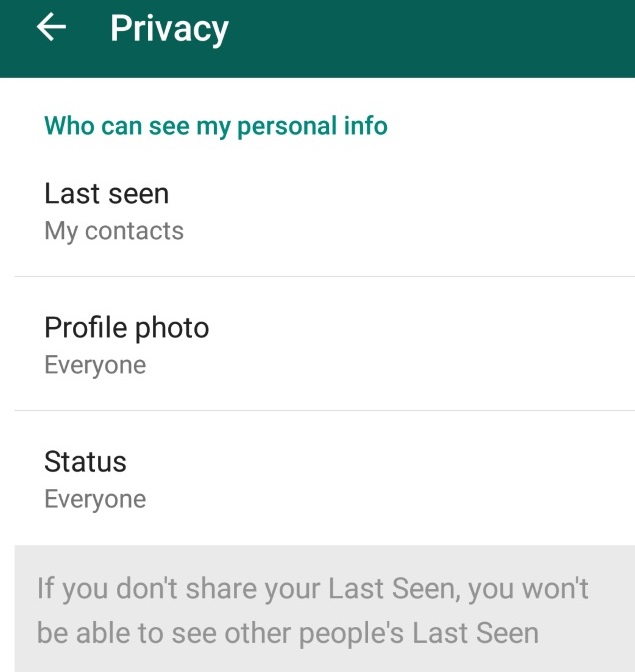
By default, WhatsApp lets everyone know the last time you used the app. Your last seen timestamp, profile photo and WhatsApp status message can be toggled between ‘Everyone’, ‘My contacts’, and ‘Nobody’ in Settings > Account > Privacy on both iPhone and Android.
Read Receipts, notified by those Blue Ticks can seem too obsessive and creepy. You can disable them too, but that also means you won’t be able to see read receipts from other people.
6. Backup And Restore WhatsApp Chats
WhatsApp makes automatic backups of your chats, but you can also make a manual backup. On iOS, it’s Settings > Chat Settings > Chat Backup, then tapBack Up Now.
On Android, just go into Settings > Chat settings and tap Backup conversations to create a backup. This won’t backup your media, so you’ll need to use a file manager to copy the media folders in /sdcard/WhatsApp/Media.

There’s no way to restore chats directly from WhatsApp, so if you want to restore a backup you’re going to have to uninstall and reinstall WhatsApp. When you start WhatsApp after the reinstall, you should be prompted to restore your most recent backup. Just follow the procedure and your chats should all be back.
Also See: How to make Whatsapp Faster?
7. Create Shortcuts For Important Contacts
Want to speed up your WhatsApp communication? How about creating a shortcut to your favorite Whatsapp contact or group straight from your homescreen?
On Android, this is as simple as long pressing on the group or contact you want to create a shortcut for. When the menu pops up, just tap on Add conversation shortcut. This will create a shortcut to the contact or group you have chosen right on your homescreen.

This behaviour isn’t available on WhatsApp for iOS, but you can use a third-party app such as 1TapWA to have similar functionality on your iPhone. Since it’s an app, 1TapWA also has some extra features such as an image editor and an action scheduler.
8. Stop WhatsApp Images from Appearing In Gallery Or Camera Roll
Having WhatsApp images in your Gallery or Camera Roll can be very annoying; maybe the images are somewhat private, or you just don’t like having these images clutter up your Gallery or Camera Roll. You can fix this on both iOS and Android.
On iOS, it’s pretty simple; just go to Settings > Privacy > Photos and then turn the WhatsApp switch off.

On Android, you have to create a .nomedia file in WhatsApp’s images or video directories. To do this, you need a file explorer such as ES File Explorer. Navigate to the images or video folders. Tap the New button in the lower left, pick File and create a file named .nomedia. This will stop the Gallery from scanning the folder.
9. Lock Your WhatsApp
Everyone, at some point or another, has probably had to deal with friends or family taking a sneak peek at their WhatsApp messages. Thankfully, if you’re using WhatsApp on Android or BlackBerry, there are apps that can help secure your WhatsApp from prying eyes.
If you’re using Android, there’s WhatsApp Lock, while BlackBerry users will want to check out Lock for WhatsApp.

Basically, both of these apps work similarly: when you use them, WhatsApp will be protected by a PIN (in the case of WhatsLock) or a password (in the case of Lock for WhatsApp). Either way, once you have things set up, the people around you shouldn’t be able to take a sneak peek at your WhatsApp any longer.
Also See: How to increase your phone’s Battery life?
10. Explore hotspots around you
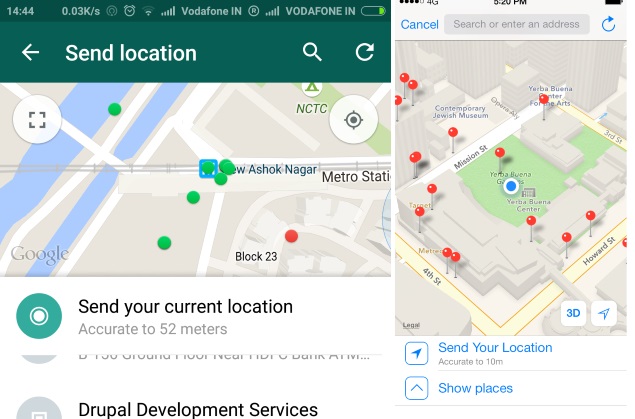
Tap on the Send location icon in the attachment pane to explore interesting hotspots around you. The map is a mash-up of FourSquare check-ins of places around you. You’ll find everything from local tech start ups to restaurants, marked as blue dots.
I Hope that You Enjoy this Post ” whatsapp Tricks and Tips for iphone,Android,Blackberry “, Please share It with Your Friends, if you Really like. If you know any other WhatsApp tips and tricks kindly share with us through your comments.