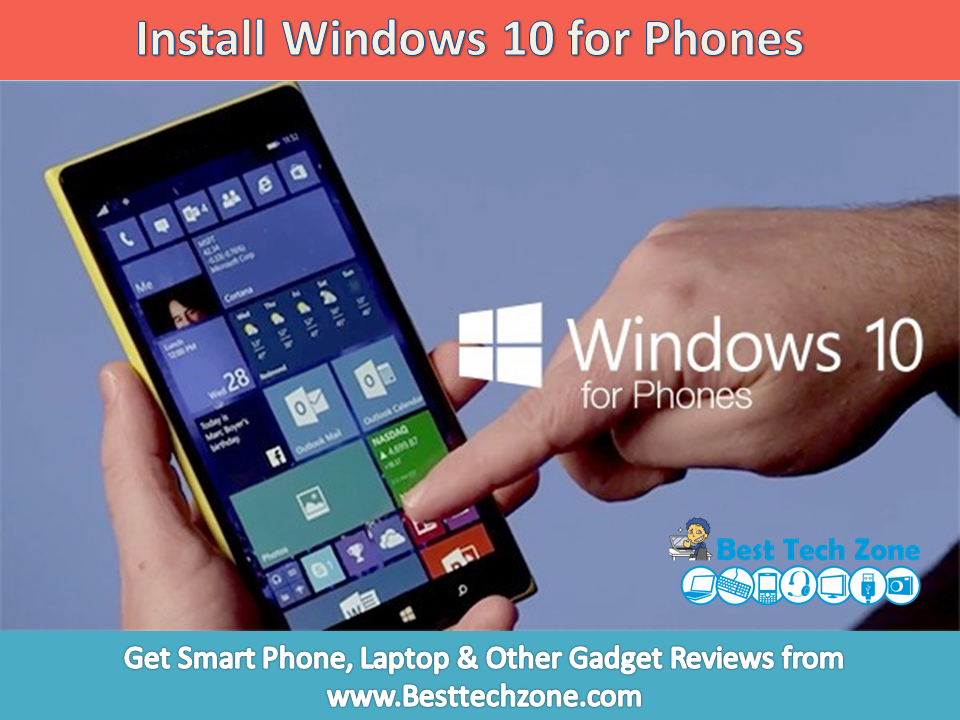
Windows 10 Technical Preview for phones is now available to download. This is a pre-release version of Microsoft’s upcoming mobile operating system. You should only download this if you want to try a new operating system on your Windows Phone device. Here we are providing the steps to install Windows 10 Preview in Phones.
Since this is beta software, many of your favourite apps may not work on it and upgrading to it right now is not recommended on your primary phone as the preview is still very much a work in progress. Windows 10 have the new features include full-size art for the Start screen, more settings in Action Center, interactive notifications, better speech-to-text and an improved Photos app. Future builds will include universal apps versions of Word, Excel and PowerPoint, Mail and Calendar.
Download and install Windows 10 Technical Preview for phones
-
Sign up for the Windows Insider Program, if you haven’t already.
-
Find out if Insider Preview is right for you, and make sure your phone is on the list of supported phones. Prerelease software doesn’t always work as expected, and could cause your phone to stop working permanently.
- Head to the Store on your Windows Phone device and download the Windows Insider app.

Also See: How to create Windows 10 bootable USB Flash Drive
- Once installed, launch the app and select the ‘get preview builds’ option.
- You’ll need to enroll on the Windows Insider programme to get preview builds of the software and you have two options, Insider Slow or Insider Fast.Fast will mean you get updates quicker but they have the potential to be more buggy and crash. Meanwhile, the slow option will involve you waiting longer but receiving a more stable build. Microsoft has a list of known issues on the blog post which we linked to at the top of the article.Select the one you prefer and hit the arrow button at the bottom of the screen.
- Before you can install Windows 10 on your phone you have to accept the terms and conditions of the Insider Programme. Most importantly it could void your warranty and as we mentioned it could be buggy making your device unusable in some ways.We don’t advice installing it on your main phone. If the device is your main phone and you really want to install Windows 10, opt for the Slow Insider option to ensure a more stable build.
- Once you’ve accepted the terms, simply head to the ‘phone update’ section of the system settings and hit the ‘check for updates’ button.
- Once the update has downloaded and installed, your phone will reboot and migrate some data. You’ll then be given a ‘success’ message but you’re not quite done. As it says, you can leave the phone plugged into the mains and let it do the rest or head to the Insider app to finish the upgrade.

It is not yet clear if the Preview for Developers program needs to be enabled or disabled during this process. We will update this story as more information becomes available.
Depending on how much storage you have on your phone, the update could take upwards of 20 minutes but it will vary. You may also need to update to Windows Phone 8.1 build 14219 first before going to Windows 10 for phone.
Hope you like the article ” How to Download and Install Windows 10 Preview for Phones ” and feel free to ask doubts.
Also See: How to Download Windows 10 for PC free – 32bit/64 bit