We are all eagerly waiting for Free Windows 10 Upgrade. Microsoft already announced that Windows 10 is going to be released on July 29 this year. For getting Windows 10, you have to reserve your copy of Windows 10 upgrade.
But now the problem is most of the people may don’t know “How to Reserve Free Windows 10 Upgrade”. Don’t worry friends, reservation for windows 10 update is very easy. In order to help you, here we are providing the steps to reserve free windows 10 upgrade for windows 7 and for Windows 8.1 users.
If you are a new user, you will have to pay for Windows 10 but if you own a licensed copy of Windows 7 or 8, then you can reserve your copy of Windows 10 today, and you can download it on launch day.
Windows 10 upgrade is free . The upgrade offers the full version of Windows 10, not simply a trial or limited version. It also ensures that you can run Windows 10 on your specific device for free “for the supported lifetime of your device,” according to Microsoft.
The free upgrade applies only to Windows 7 SP1 and Windows 8.1. So if you haven’t upgraded Windows 7 to SP1 or Windows 8 to 8.1, you’ll have to perform those tasks first. Also, you have one year from July 29 to upgrade your PC to Windows 10 for free. After that year is up, you’ll have to purchase Windows 10 yourself.
How to Reserve Free Windows 10 Upgrade
Reserving your copy of Windows 10 upgrade is simple, just follow these steps to get it done. First though, you need to install the latest Windows updates on your PC.
- On Windows 8, you can do this by pressing Windows key+C > Settings > Change PC Settings.
- Now click Update and recovery on the left pane. Hit the download or install button to update your PC.
- On Windows 7, you can do this by clicking on the Start button, type update in the search box and click Windows Update.
- In the left pane, click Check for updates. Now select all updates and click Install updates.
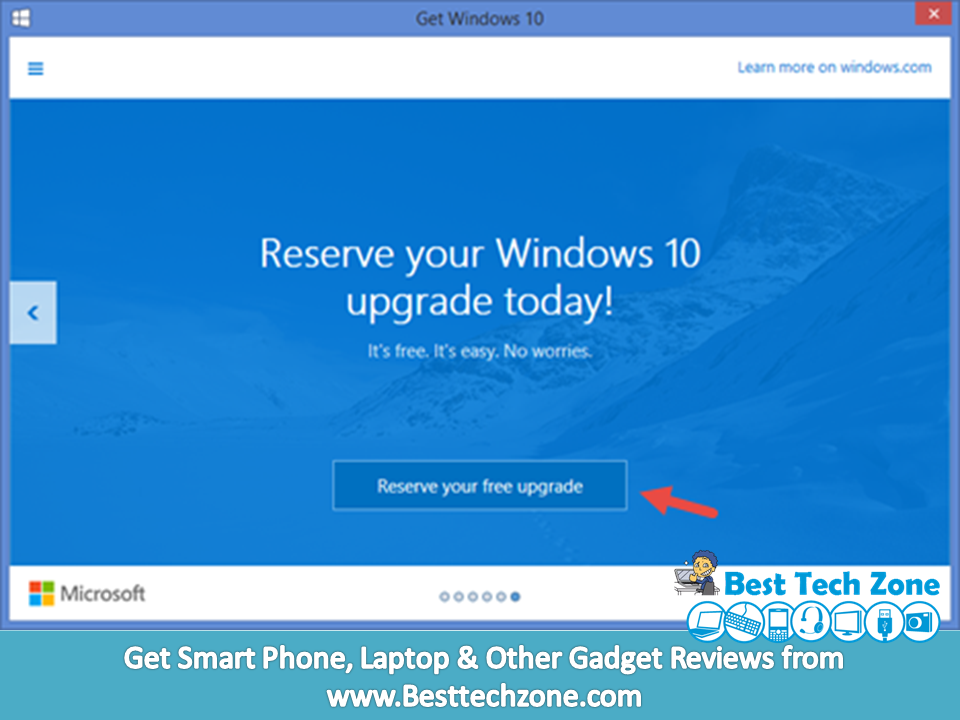
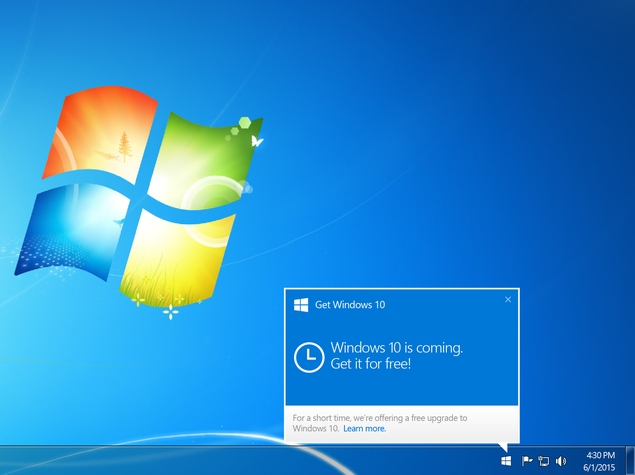
After the updates are installed, the Get Windows 10 app should be installed on your computer. This app lets you reserve your copy of Windows 10. Here’s how.
- Click the Windows icon on the system tray.
- Click Reserve your free upgrade.
- Enter your email address to receive confirmation of your reservation.
- Now you’ll see a message that says your upgrade has been reserved. There’s a Cancel reservation button on the bottom left here. You can click that if you wish to cancel your reservation.
If you don’t see the Get Windows 10 app even after installing updates, you can visit the MicrosoftFAQ page for help.